Feature details
Full context control.
Fewer kubectl commands.
Your Kubernetes clusters and namespaces, right in your Mac’s menu bar. Here’s everything Clusterverse offers.
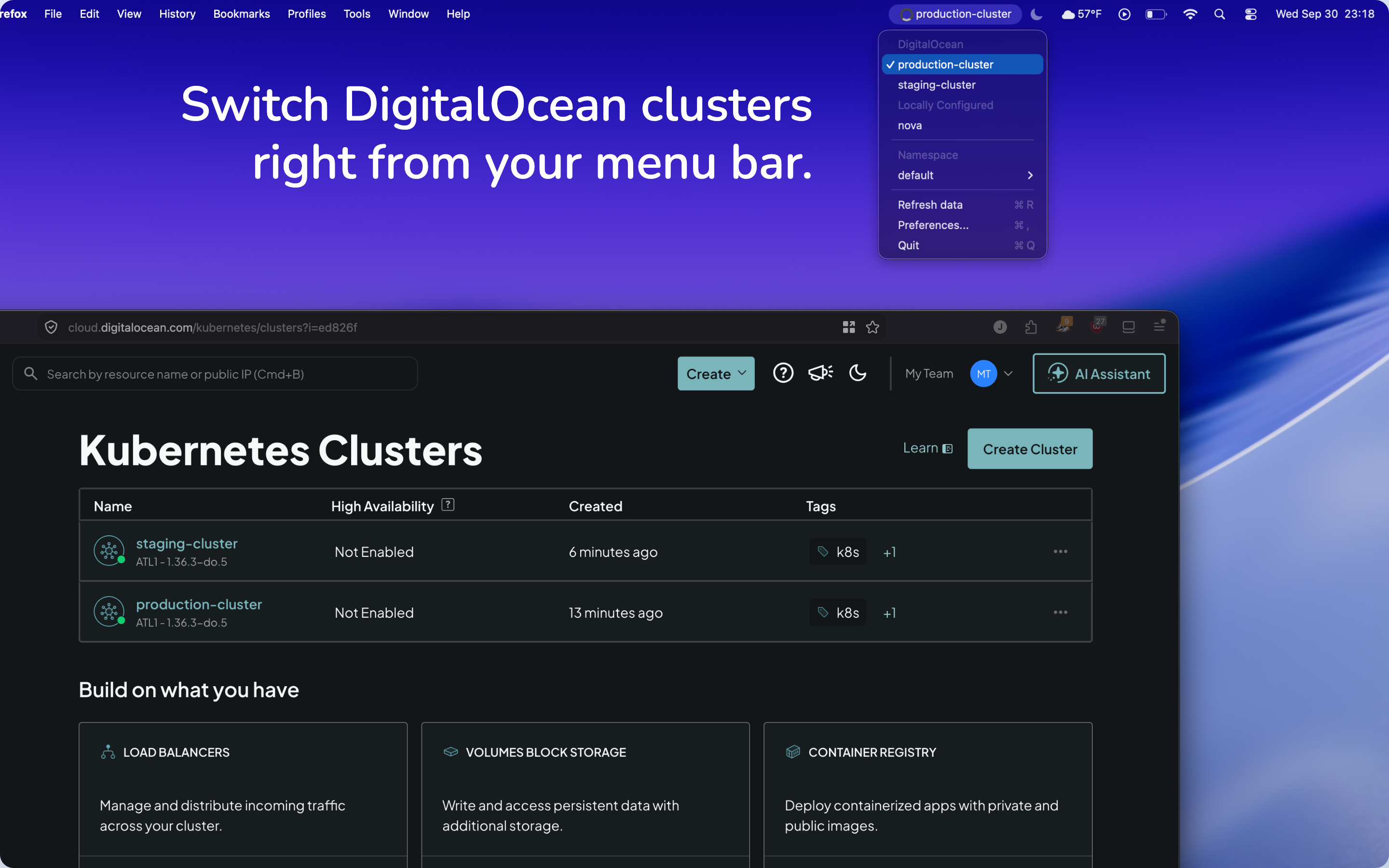
From staging to production in a click.
Connect your DigitalOcean account to see your Kubernetes clusters in the menu bar. Select a cluster and Clusterverse downloads its kubeconfig and makes it active, ready for your next kubectl command.
Your local contexts are here, too. Clusterverse reads your existing kubeconfig so you can switch between DigitalOcean and locally configured clusters from the same menu.
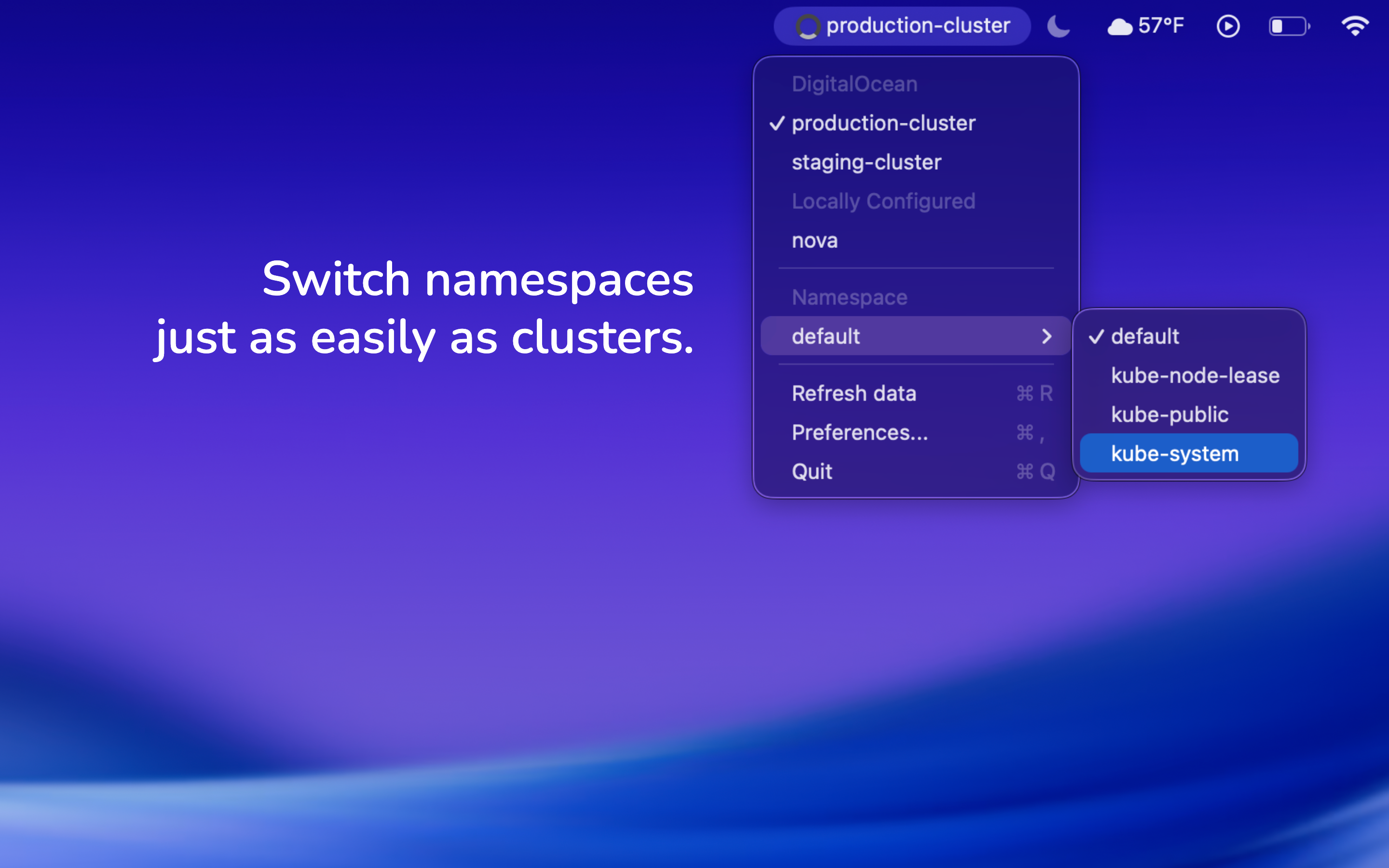
Switch namespaces with a click.
Open the Namespace submenu to see namespaces from your active cluster and select the one you need. Clusterverse updates the current context in your kubeconfig, so kubectl uses your selection by default.
For DigitalOcean clusters, your namespace selection is remembered per cluster and restored when you switch back.
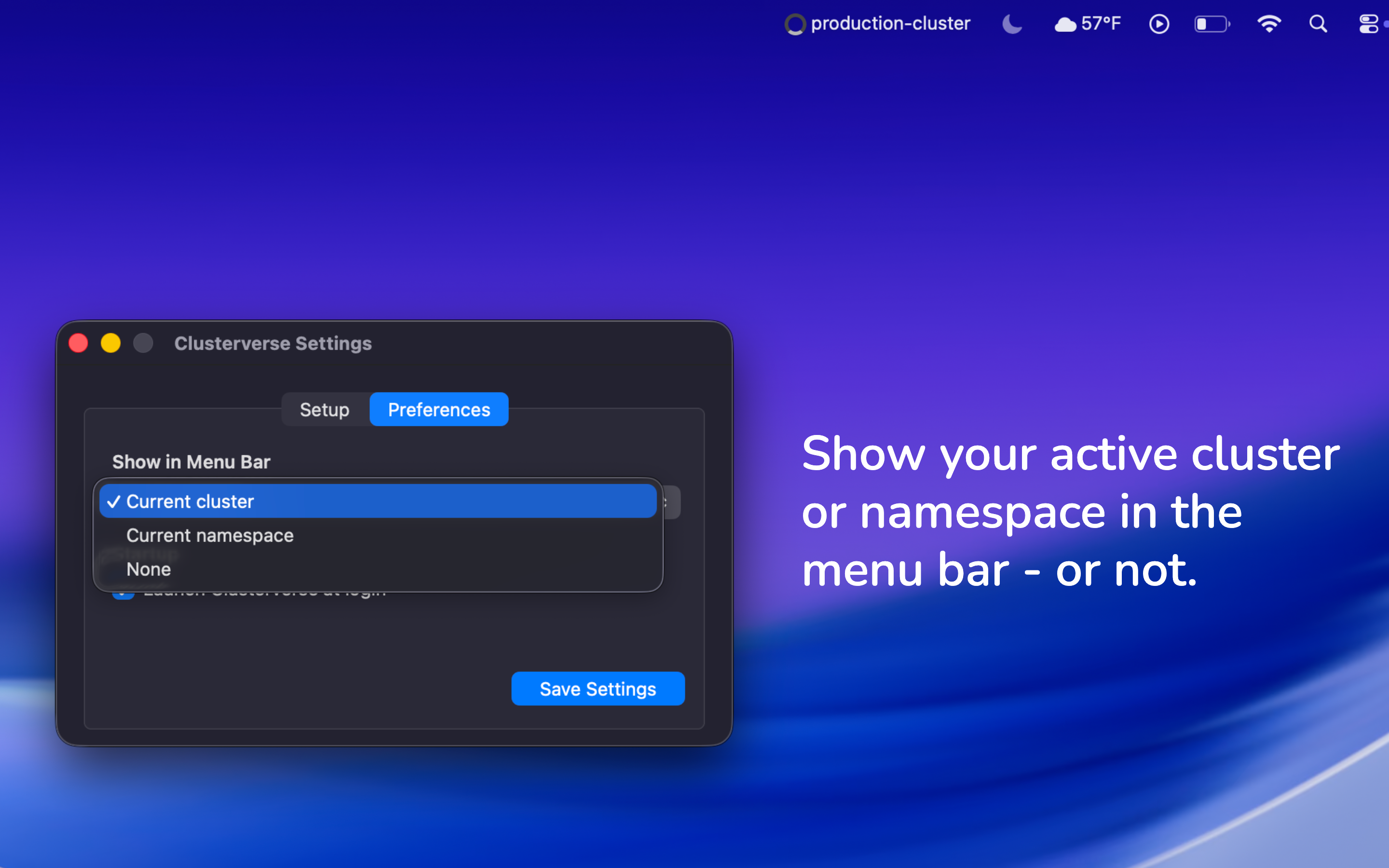
Know where you’re working at a glance.
Choose to display the current cluster or namespace beside the menu bar icon. Keep your active context visible while you work in your terminal, editor, or browser.
Or, just show the icon. Clusterverse stays in the menu bar without adding a Dock icon.
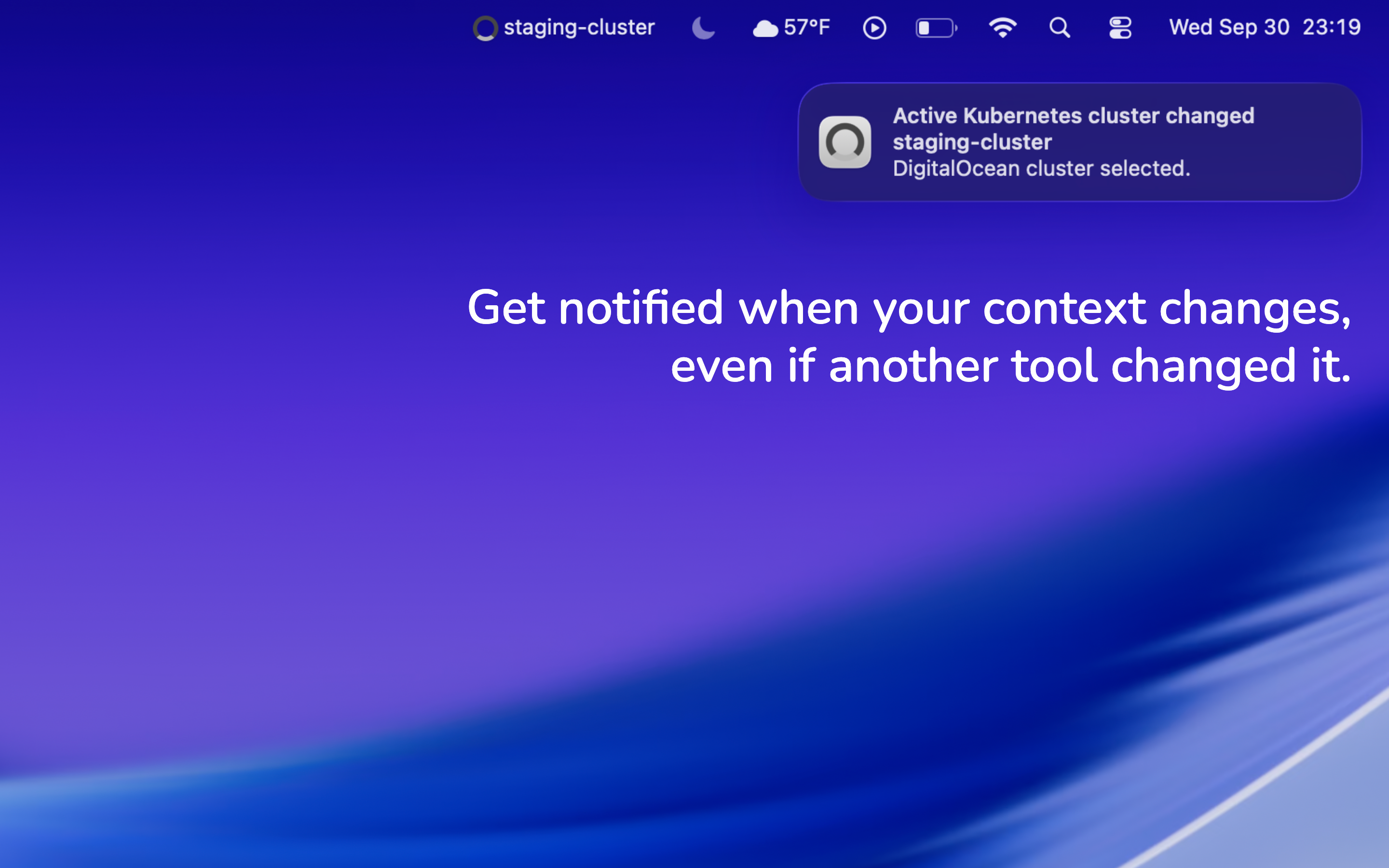
Confirmation when your target changes.
A macOS notification confirms when your active cluster changes, even if another tool (or you manually) changed your kubeconfig.
Notifications use the built-in macOS notification system and follow your notification permissions.
New DigitalOcean clusters come to you.
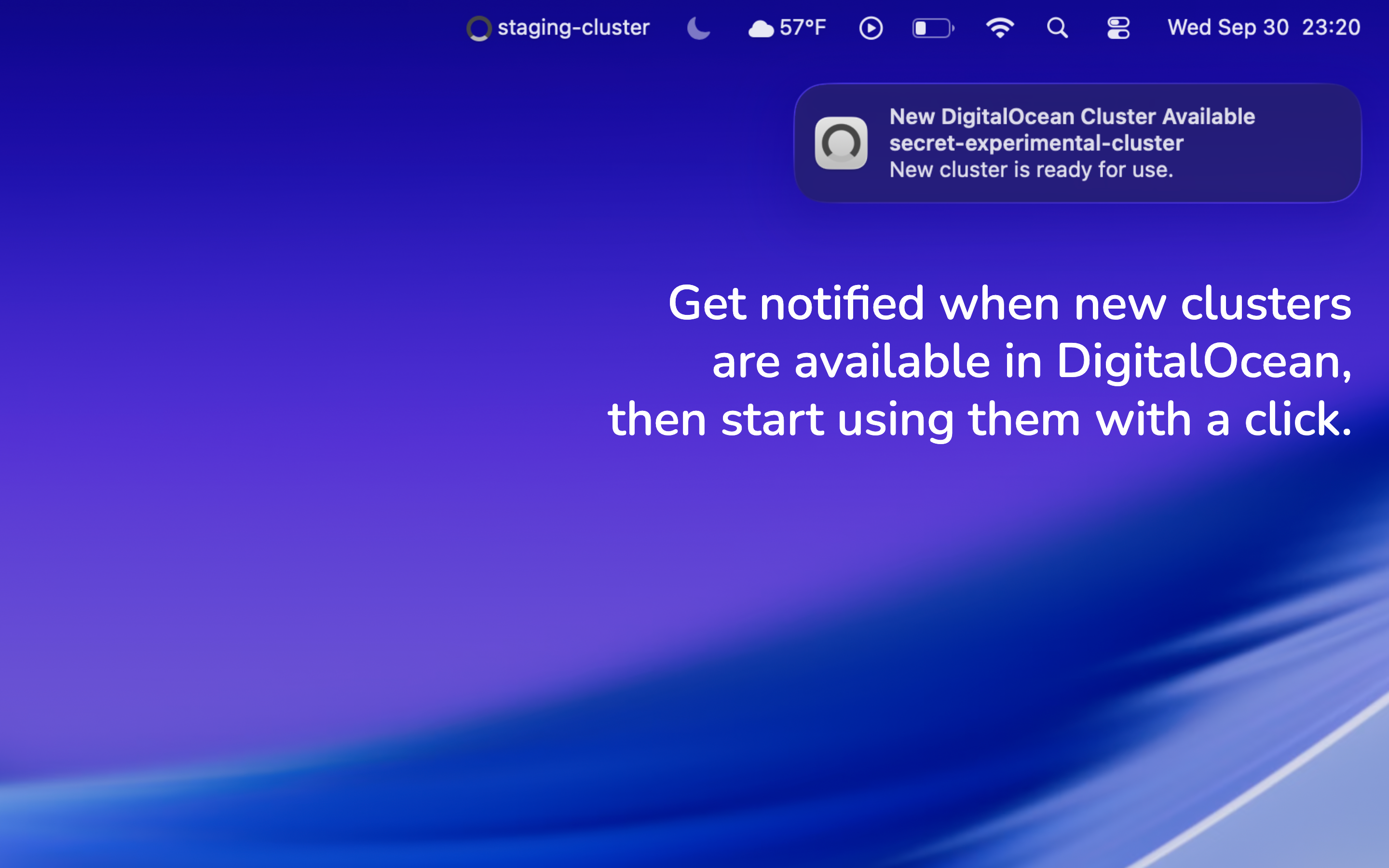
Clusterverse refreshes your DigitalOcean cluster list in the background and notifies you when it discovers a new cluster. Open the menu to select it when you’re ready.
It also renews expiring DigitalOcean credentials in the background, keeping your active cluster’s connection ready to use.
Tame the Clusterverse.

For Mac · macOS 13.0+